
Pricebot
Query token data with /x, /z, and the chart commands, read the scan, tune images and layout, and find the right token.
Rick's pricebot answers token queries on Discord and Telegram. /x scans a
token, /z returns a shorter price-first reply, /c adds a chart, /ds
searches several tokens at once, and /f shows your favorites. Settings
control auto responses, images, filters, and layout.
Discord uses the . dot prefix and Telegram uses the / prefix for pricebot
commands. /x btc on Telegram is .x btc on Discord.
Commands
| Platform | Command | Description |
|---|---|---|
| /x | Query a token. |
| /z | Minimal token query: no images, trimmed contract, minimal honeypot info. |
| $<symbol> | Query a token symbol (A-Z only). |
| /a | Query CoinGecko tokens. |
| /c | Token query with a chart. |
| /cc | Only the chart image. |
| /cx | Minimal response with a chart. |
| /pf | Force the pump.fun (pre-bond) layout for a scan. |
| /ds | Search and return multiple tokens. |
| /f | Query BTC, ETH, and SOL plus the chat favorites. |
All of these commands, including /soc and /dp, work in reply to any Rick
response.
Usage
To query a token, send /x token. A contract or a trimmed (partial) contract
works too. For a shorter response that focuses on the price, use /z btc. It
skips images, trims the contract, and keeps honeypot info minimal.
Charts are a separate feature. Timeframes, modifiers, and themes live on DEX charts.
/x <token>- query a token, contract, or trimmed contract./z <token>- minimal query, price first./a <token>- CoinGecko lookup, for example/a btc./pf <token>- force the pump.fun (pre-bond) layout, with bundle and deployer info, for any pump.fun token./f- BTC, ETH, and SOL plus the chat favorites.
Finding the right token
- Use
/ds token. The token is usually there: click the title, or copy the trimmed contract and query it with/x 0x1a2b3c. - Use
/z pepe 2or3to get the next result. This works with any query. - Query it often? Set a token filter for your group.
- Add the right token to the chat favorites so
/fincludes it.
Delete a Rick message with x in reply (Telegram) or the trash can emoji
(Discord). See delete a bot message.
DexSearch
/ds <query> returns several matching tokens when one query is not enough,
for example tokens that share a name. Click a title to scan it in your DMs, or
copy the trimmed contract and run any pricebot command on it: x, z, c,
or cc.
/ds <query>- search multiple tokens. Click a token name to scan it in your Telegram DMs, or copy the trimmed contract.
Each result reads as: network, name and $SYMBOL, FDV, then on the second
line liquidity, 24 hour volume, pair age, and the trimmed contract. Pairs
under $1,000 liquidity are left out and the list is sorted by 24 hour volume.
Favorites
/f shows BTC, ETH, and SOL followed by the favorites saved for this chat.
Reply to a token message to add or remove a token.
/f- show the favorites list./fin reply to a Rick token message - add that token, or remove it if it is already a favorite./fin reply to a favorites response - remove the last added token./f reset- clear the favorites for this chat. Admins only.
Favorites work in groups and DMs. A chat can hold up to 7 favorite tokens. Tokens that no longer have a trading pair are dropped from the list automatically.
Each favorite line reads $SYMBOL, FDV, price in USD, and the 1 hour change.
Reading a token scan
A full /x (Telegram) or .x (Discord) scan reads top to bottom: headline, market rows, warnings,
holders, links, then the contract and trade shortcuts.
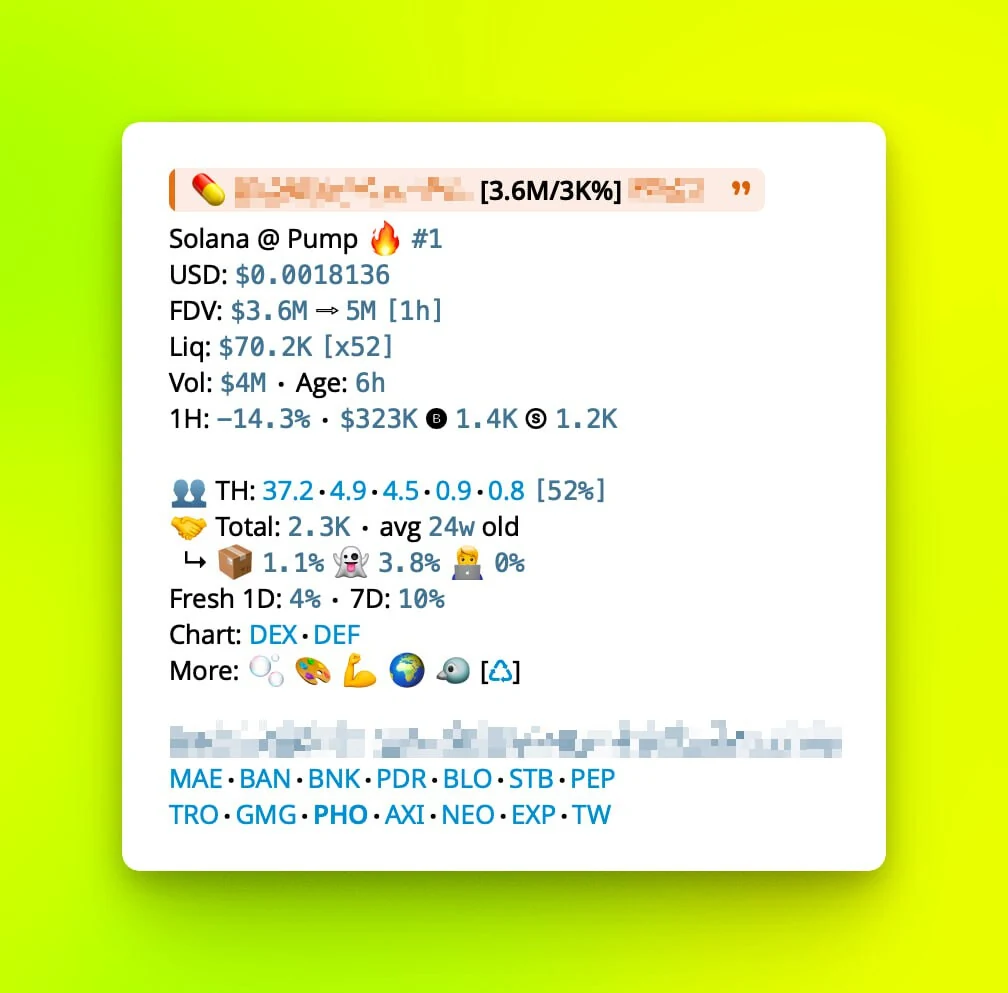
🟡 dogwifhat [2.3M/12%] $WIF- status emoji, name,[FDV/24h change], and ticker. See Scan icons.🌐 Solana @ Raydium 🔥 #3- network, DEX, and trending rank.💰 USD: 0.002345- USD price.💎 FDV: 2.3M ⇨ 5.6M [2h]- FDV, then the highest FDV and how long ago.💦 Liq: 234K [x20] 🔥- liquidity in USD and liquidity ratio. ⚠️ flags very low liquidity. On some EVM chains, 🔒 or 🔥 with a percentage shows how much LP is locked or burned.📊 Vol: 1.2M ⋅ Age: 5h- 24 hour volume and token age. 🧠 adds a contract score on Ethereum tokens under 7 days old.📉 1H: 45.7K ⋅ -4.6% 🅑 120 Ⓢ 80- 1 hour volume, price change, buys, and sells. 📈 means the price is up.- Warning rows, when any apply. See Warnings and security rows.
👥 TH: 4.2⋅3.1⋅2.0 [42%]- top 5 holders' percentages, then the top 10 total. The creator's share is bold.🤝 Total: 12.3K ⋅ avg 27w old- holder count and average wallet age.┕ 📦 4% 👻 2% 🎯 1% 🧑💻 2.3%- bundler, insider, sniper, and dev holdings on Solana tokens up to three days old.🌱 Fresh 1D: 16% ⋅ 7D: 36%- wallet-activity percentages for 1 and 7 days.💹 Chart: DEX⋅DEF- DexScreener and Defined charts.🧰 More:- tools and socials.- The contract address, then trade and explorer shortcuts.
🏆 user @ 1.2M 👀 42- first scanner, FDV at that scan, gain since, and scan count.
On Solana, the Liq 🔥 reflects reported locked liquidity but does not prove a full burn, and a missing mark proves nothing.
Tokens still on a launchpad bonding curve use a shorter layout:
🆕💊- the launchpad headline drops[FDV/24h change]. The launchpad emoji links to its page.⏳ 45% @ Pump 🔥 #7 ⋅ 📺 1.5K- bonding progress, launchpad, trending rank, and livestream viewers. Launchpads outside Solana add the network, for example@ Flap (V3) on BNB.- There is no USD or Liq row, and
5M:replaces1H:. 👨💻 DEV ⋅ DP: No- the deployer link and whether DexScreener has been paid for.🧬- links to the creator's earlier pump.fun tokens;[N]is the total number deployed.
Major tokens such as ETH and SOL show the price instead of FDV in the
headline, for example Ether [3,457/-2.5%] $ETH. They skip the FDV row,
the holder rows, and the bubble map, and the contract is shortened.
Warnings appear near the market and holder rows. Some combine with the tax row:
🍯- the tax and simulation row. See Taxes and simulation.🚨 Unverified CA- the contract source is not verified.⚠️ Proxy ・ Has mint- the contract is a proxy, can mint more supply, or both.🚨 Can freeze 🥶- on Solana, the freeze authority is still active. The status emoji changes to ⚠️.🖨️ Mint: 🚨- on Solana, the mint authority is still active.🚨 CA holds: 1.6%- the share of supply held by the token contract, on some EVM chains.- TON scans can also show holder count,
✅ Verified,❌ Blacklisted, or🚨 Possible scam.
/pricemode alt groups the same data into sections. See
Reply layout.
- The headline reads
dogwifhat ($WIF) 🔥 #3, followed by#SOL • 🌱 5h • 👀 42for network, age, and views. 📊 Stats-FDV,USDwith the 24 hour change,Vol,LP,1H, andCA Taxwhen the contract holds supply.🔰 Audit-THtop holders,T10top 10 total with holder count and average wallet age,Fresh,HAholder analysis,Authfor active Solana authorities,HPandRiskcontract checks,DEVholding, andDPDexScreener paid status.🔗 Links- the token's socials.DEX⋅DEF⋅BM- chart and bubble map links, then the contract, shortcuts, and the first scan line.
Compact detail drops the Audit section.
Taxes and simulation
On chains that support it, Rick simulates a buy and a sell before it prints a scan, and reports what that round trip cost. The row is deliberately quiet: it appears only when it has something worth saying.
| Row | What it means |
|---|---|
🍯 SIM: OK ⋅ T: 3/5 | The round trip went through. Buy tax 3%, sell tax 5%. |
🍯 SIM: FAIL ⋅ T: 3/? | The buy was measured at 3%, but the sell was blocked, so the sell tax is unknown. |
🍯 SIM: FAIL | The simulation itself failed, so no tax was measured. |
🍯 T: 3/5 | Taxes as reported by an external source, with no simulation behind them. |
| no row | Either the round trip was a clean 0/0, or Rick could not probe the token at all. |
Read the two halves separately. SIM is about whether Rick could trade the
token in a simulation, and T is about what that cost. A bare 🍯 T: row
never carries a SIM claim, because those numbers are reported to Rick
rather than measured on chain.
A passing simulation is a snapshot, not a guarantee. Taxes can be changed after the fact, and a contract can behave differently for a real wallet than for a probe. Treat the row as one signal among the contract score and AI contract analysis.
The absence of a row is not a warning. A token with no taxes and a working round trip shows nothing here, so the line stays out of the way on ordinary scans.
Scan icons
Rick always shows [FDV/24h change] in the title. The emoji around it, and
on the other lines, carry meaning.
- 🟡 - default emoji.
- 🆕 - token age under 15 minutes.
- 🚀 - the token is at its all time high.
- 🟢 - passed safety checks.
- 🔴 - flagged as honeypot.
- ⚠️ - pay attention.
- 🔥 - trending rank.
- ⚡ - an active DexScreener boost.
- ☠️ - renounced contract, Ethereum only.
Some launchpad emoji are clickable and open the related page when available.
- 💊 - launched on pump.fun.
- ☄️ - launched on Meteora DBC.
- 🧪 - launched on Raydium LaunchLab.
- 👜 - launched on Bags.
- 🐶 - launched on LetsBonk.
- 🌙 - launched on MoonIt.
- 🌀 - launched on Boop.
- 🪽 - launched on Heaven.
Experimental holder analysis is shown on the Telegram bot.
- 👥 - top 5 holders. Click the emoji for top holders.
- 🤝 - total holders.
- 📦 - bundler-held percentage. See Holder analysis.
- 👻 - insiders holding, wallets that received tokens via the deployer.
- 🎯 - snipers holding, bought within the first 4 seconds.
- 🧑💻 - DEV holding. Click the emoji for the deployer history.
The 🧬 DNA emoji appears in several places:
- on the contract score for similar tokens,
- on pre-bond pump.fun scans for other tokens by the same deployer,
- on X Profile Insights for smart followers.
General icons seen on many responses are listed on Token research, with the social icons glossary.
Cashtags
$sol queries a token by its symbol. Rick answers cashtags automatically in
chats where that is switched on, which admins control under
Auto responses.
Cashtag support is limited to text symbols only. Use /x 🐕 or /z 01 on
Telegram (.x and .z on Discord) to query tokens whose symbol starts with:
- An emoji, for example 🐶.
- A number. Rick is not meant to respond to dollar values such as
$200.
Search queries can never be one character, no matter which command you use. Set up a token filter for those tokens instead.
Tools under More
The 🧰 More row on a scan opens these tools:
- 🫧 or
bm- open the BubbleMaps mini app (Telegram). - 📊 or
ch- open the DexScreener mini app (Telegram). - 🎨 or Lens - open Google Lens.
- 💬 or SOC - show socials.
- 👥 - open holder history.
- 📦 or bundle - open further bundle analysis on some launchpad scans. It
does not confirm that Rick found a notable bundle. Force a pump.fun scan with
/pfor.pf.
Pricebot settings
These settings customize how the pricebot responds in a chat. In groups they are limited to admins, and changes can take up to 5 minutes to apply.
| Platform | Command | Description |
|---|---|---|
| /autoresponder | Respond to contracts and chart links, or ignore them. |
| /cashtag | Respond to cashtags such as $sol. |
| /pricemode | Change how the price bot replies. |
| /noresultmode | Show or hide the tools panel when a lookup finds no pair. |
| /scanconfig | Restrict group token scans by role or minimum FDV. |
| /emojimode | Fewer emojis on price responses. |
| /autoimg | Include images, banners, or charts on scans by default. |
| /ctheme | Change the chart theme. |
| /rickfix | Create a token filter. |
| /rickunfix | Remove a token filter. |
| /showfixes | Show all filters. |
| /fsrefresh | Allow or block refreshes for first token scans. |
| /buttons | Show or hide the standard action controls on scans. |
Auto responses
In groups where Rick can read messages, it responds to contracts, chart links, and cashtags by default. Group admins have separate controls for each:
/autoresponder off- make Rick ignore contracts and chart links./autoresponder on- restore automatic responses./cashtag on/off- choose whether Rick responds to cashtags such as$sol. Cashtags only match text symbols; see Cashtags.
See Get started for the permissions Rick needs.
Reply layout
/pricemode controls the default reply to automatic token and cashtag scans.
A direct /x always gives the full response, while /z always gives the
compact response.
Group admins can choose two independent defaults:
- Layout:
/pricemode defaultor/pricemode alt. - Detail:
/pricemode fullor/pricemode compact. - Start over:
/pricemode resetrestores the default layout and full detail.
In a private chat, Rick always uses full detail. You can still choose the layout, but not compact detail.
Scan restrictions
/scanconfig controls who can start token scans in a group. It does not
change the fields shown in a scan.
Group admins can choose one restriction. This does not work in DMs:
/scanconfig admin- only admins can scan tokens. Rick needs permission to delete messages for this mode./scanconfig <minimum FDV>- block non-admin scans below a value, for example/scanconfig 30000./scanconfig reset- remove the restriction.
Fewer emojis
/emojimode reduces emojis on the main price responses. Telegram only.
/emojimode off shows fewer emojis (mostly the clickable ones), giving a
cleaner layout. /emojimode on restores the default layout.
Images and charts
/autoimg includes images, banners, or charts on token scans by default, so
you can spot a token you like without opening anything. Banner modes only
show DexScreener banners: if a banner is shown, DEX is paid.
/autoimg <mode> takes one of six display modes, or off:
img- include images and banners (compact). Recommended.bigimg- attach images and banners as a full-size photo.banner- only include banners (compact).bigbanner- only attach banners as a full-size photo.c- include a chart.cwide- include a wide chart.off- back to minimal scans.
Run /autoimg without a value to see the options. In groups this is admin
only. You can also set it in your DMs with Rick, so clicking any token title
re-scans the token in your DMs with a chart or banner. The default mode is
img. On mobile devices, the compact img and banner modes show a
minimized preview to avoid clutter.
In img mode Rick also shows a livestream preview while the creator is live
on pump.fun. It is always shown on pre-bond scans and, for bonded tokens
without a banner, for 7 days after the pair was created.
Mode previews
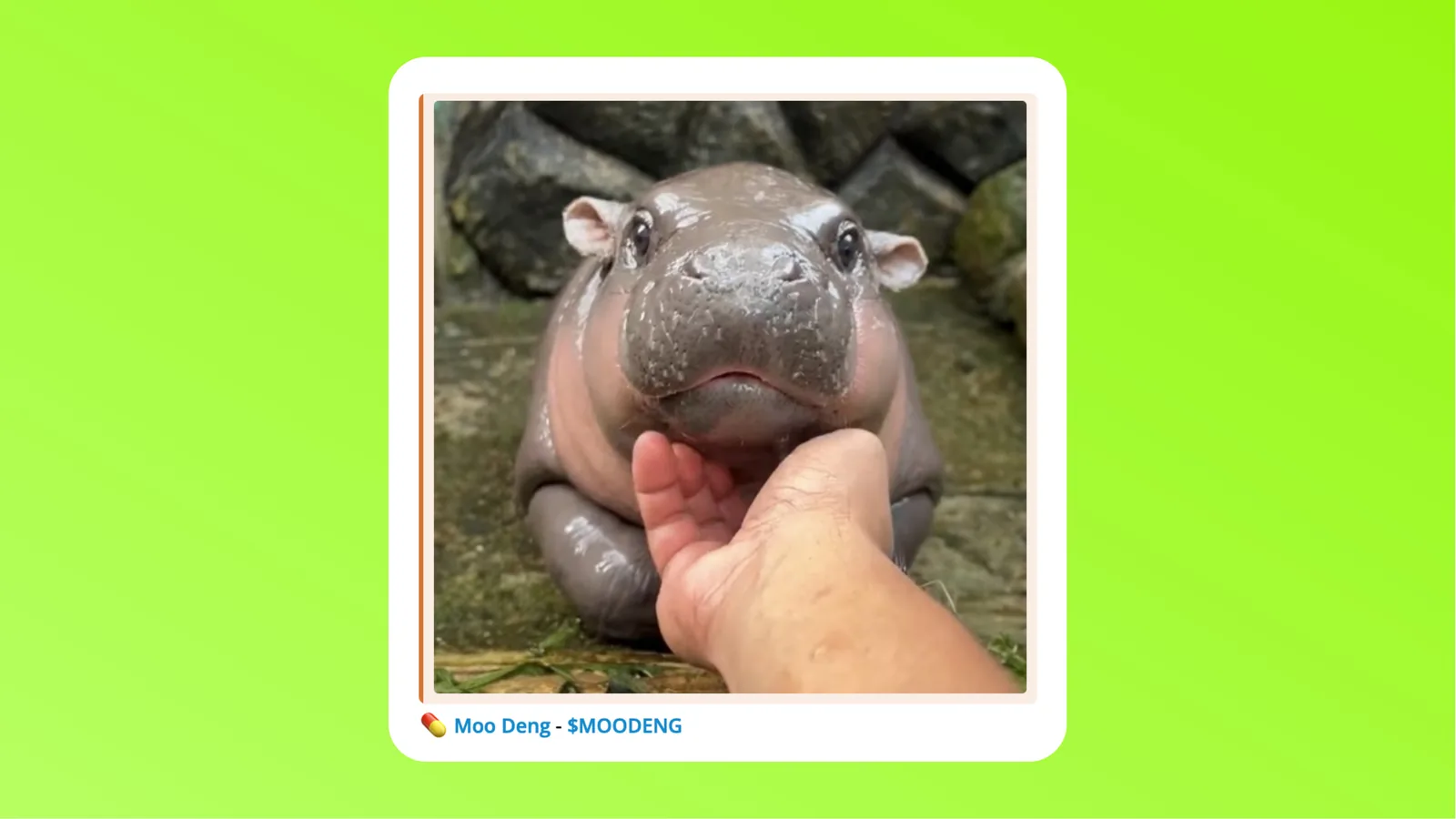 img· Compact image or banner
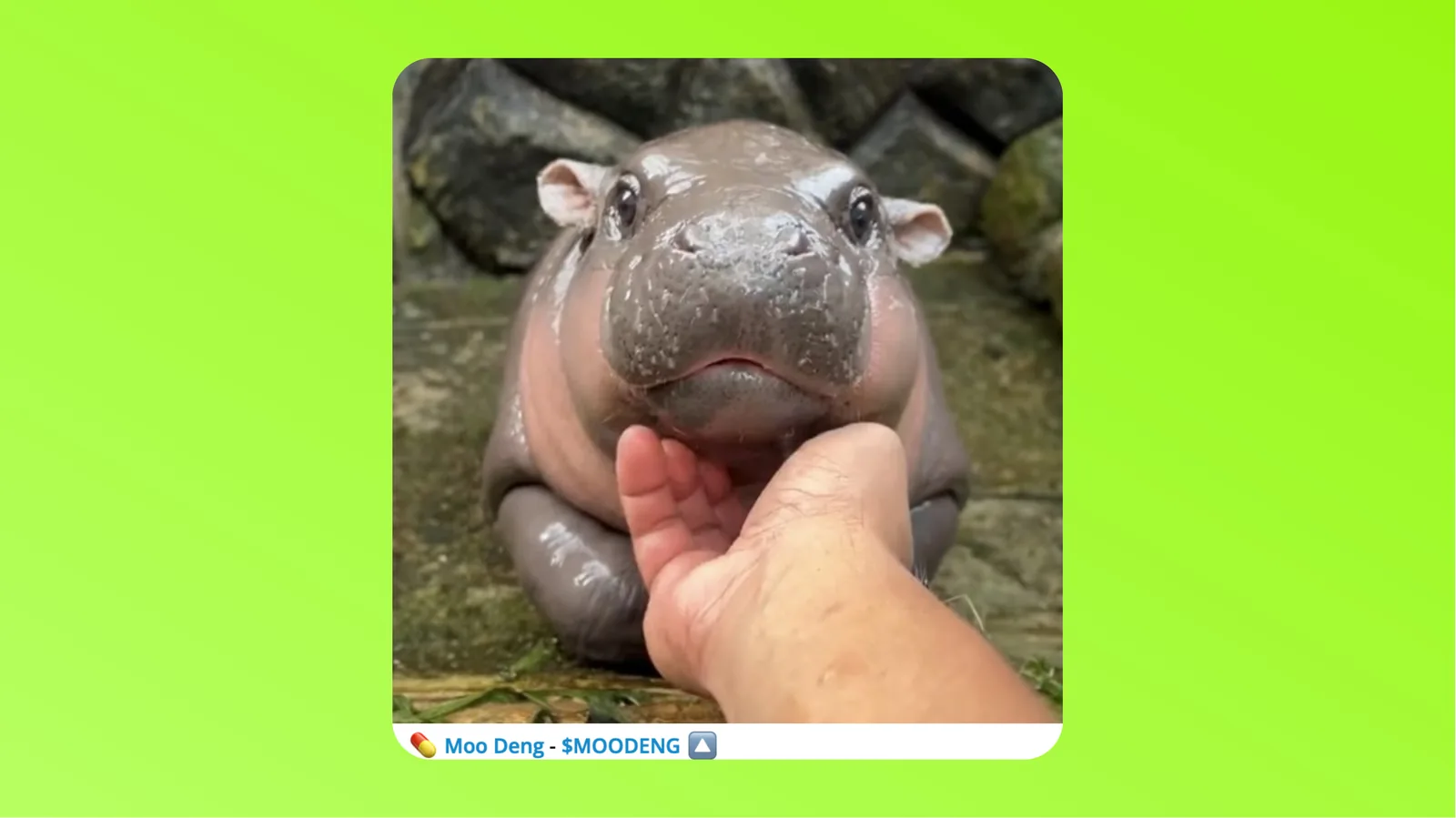 bigimg· Full-size image or banner
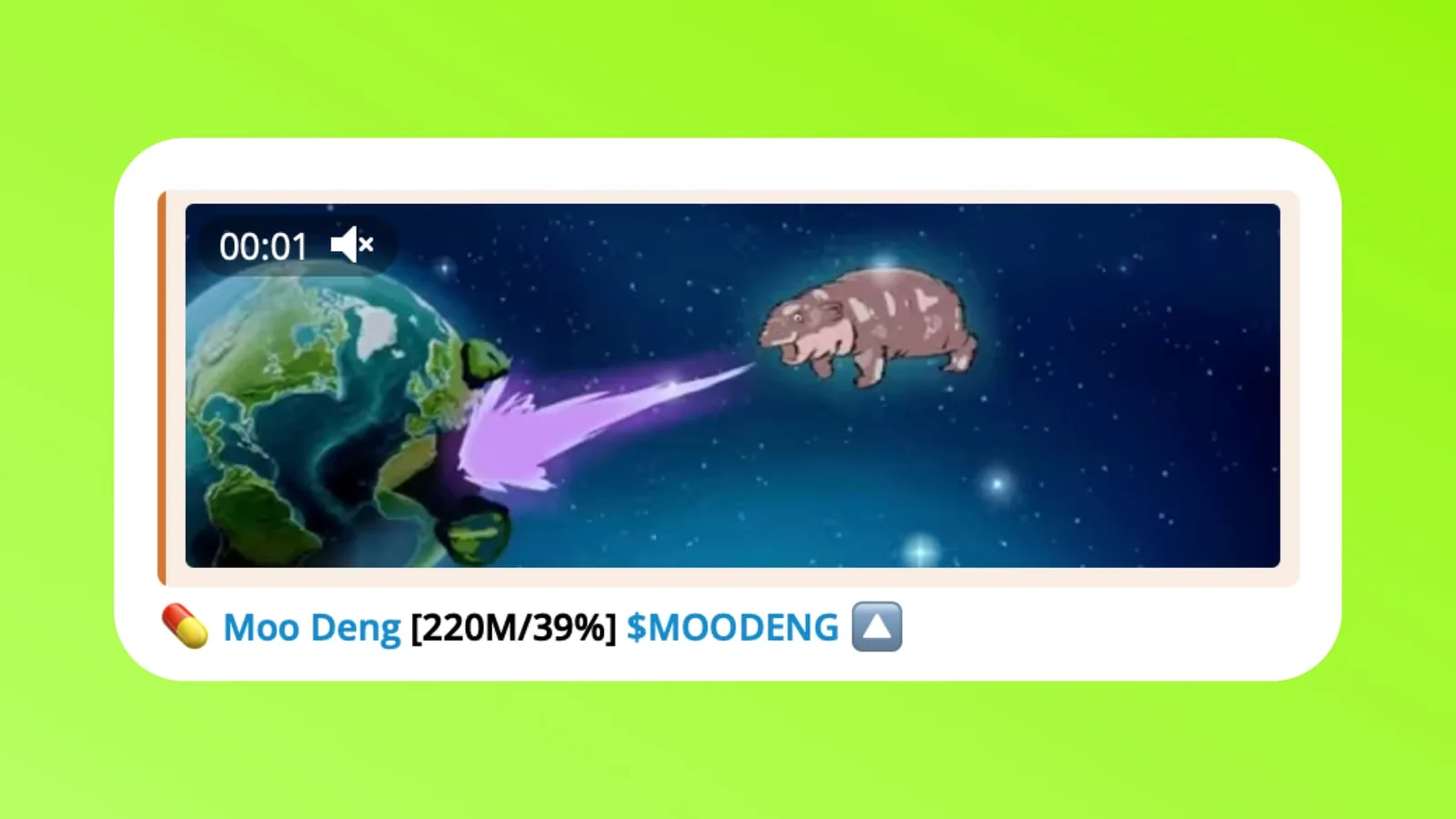 banner· Compact DexScreener banner
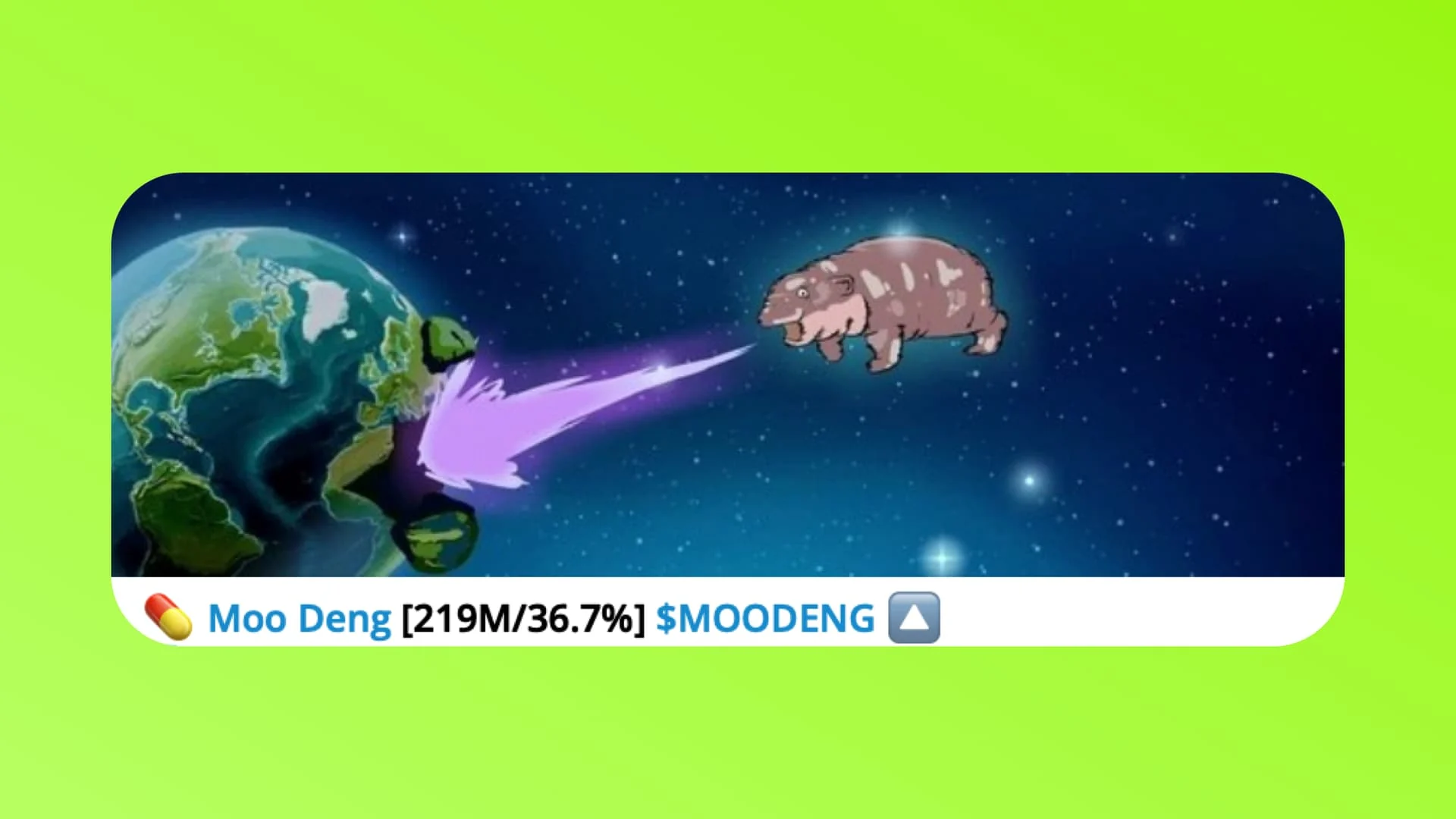 bigbanner· Full-size DexScreener banner
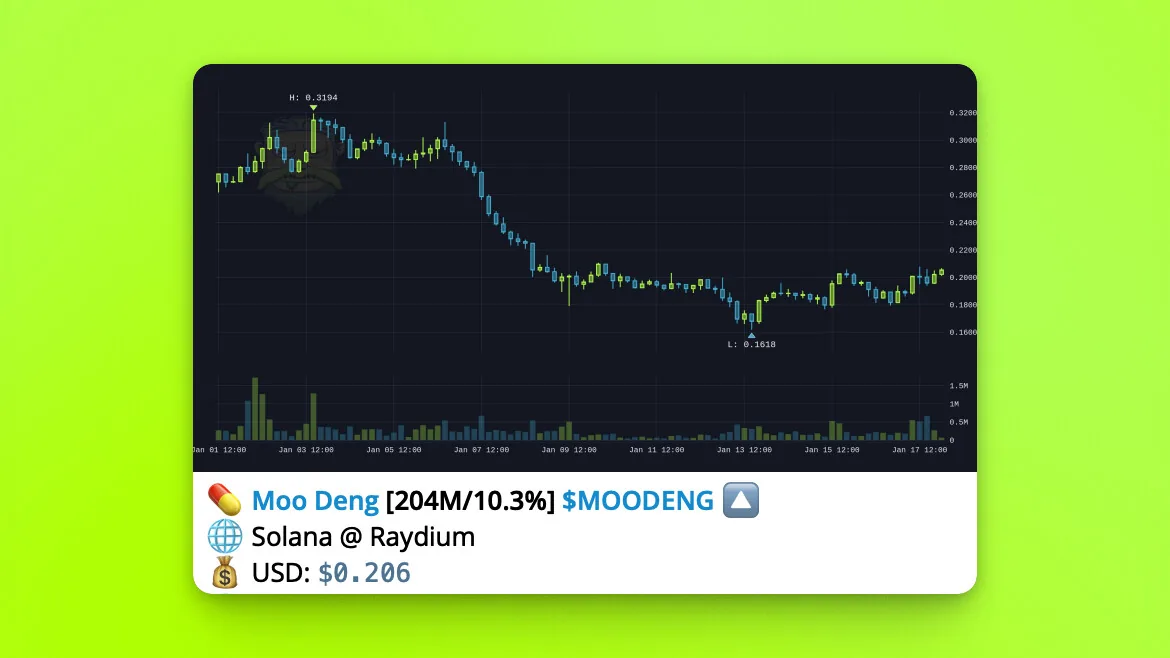 c· Chart with token details
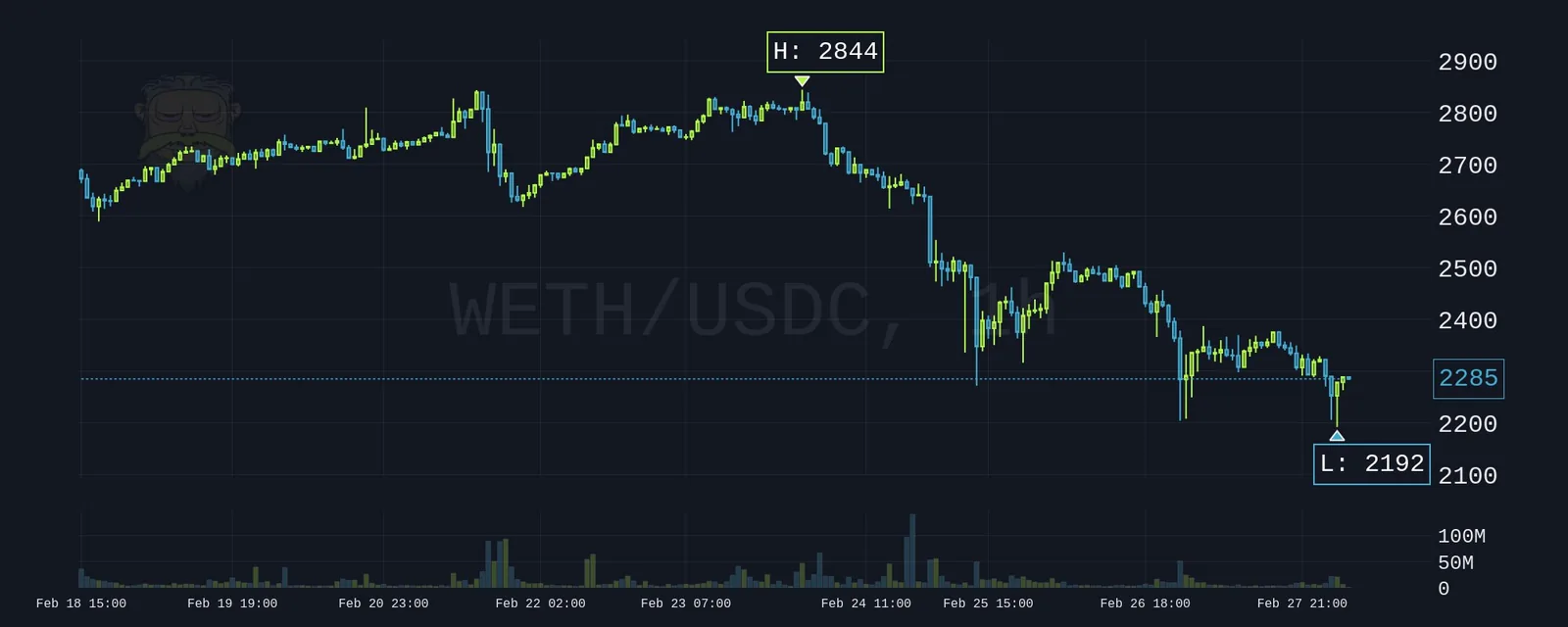 cwide· Wide chart
- The setting does not work. Any changed setting can take up to 5 minutes to apply.
- GIFs are not working. Due to Telegram limitations, use
imgmode for GIFs to work. - Some images are not up to date. Telegram caches previews very
aggressively. Send the image link to
@WebpageBot and press Update with content
to force Telegram to grab a fresh preview. Grabbing the link is only
possible in
imgmode. - pump.fun images. Telegram shows pump.fun images with
imgorbigimg. To see the 💊 pump.fun image after migration, reply to the Rick response with/socor use/pf <contract>to request the pump.fun response.
Report bugs with the /burpback command.
Quick links and no-result replies
Rick always shows shortcuts to the most used bots and tools under a scan. There are two sets:
- DEX tokens. When a pair is detected, chain-specific shortcuts are shown for most networks. Shortcuts are mostly hardcoded to Ethereum when the network is not fully supported or unknown.
- Pre-trading tokens, wallets, and NFTs. When Rick does not know what an address is (a token that is not live yet, a wallet, an NFT), it still replies with a panel of quick tools instead of a price result.
/noresultmode off turns the quick tools panel off, so Rick stays quiet on
addresses without a pair.
To customize the action buttons under a scan, see Custom Trade Buttons.
Token filters
A token filter maps a ticker to a contract for this chat, so a query such as
/x pepe returns the token you mean. A pair address or a contract address
both work. Search queries can never be one character, so set up a filter for
those tokens. See Finding the right token for when
a filter helps.
/rickfix <ticker> <contract>- create a token filter, for example/rickfix pepe 0x..../rickunfix <ticker>- remove a token filter./showfixes- show all filters for this chat.
First scan refresh
/fsrefresh controls the Refresh button on a token's first scan in a chat or
server. It does not affect Refresh on later scans.
/fsrefresh on- let members refresh first scans./fsrefresh off- block Refresh on first scans. This is the default.
Scan controls
Scans carry a standard action row unless an admin turns it off. On Discord the
setting applies per channel. This row is separate from the trading-platform
buttons configured with /tb.
/buttons on- show the controls. Default./buttons off- hide them.
The row can include:
- Refresh - re-runs the scan with the latest data.
- Delete - removes the Rick response.
- Social lookup - opens the token's social lookup.
- X search - opens a live X search for the token.
- Chart or Copy contract - opens a chart, or copies the contract when a chart does not apply.
How is this guide?