
Token research
Find socials with /soc, check DexScreener orders with /dp, score Ethereum contracts, audit verified source with /aica, and read the lore.
These commands answer the questions that come after a scan: where are the socials, is DEX paid, how unique is the contract, what does the source code do, and what is the story behind the token. Each works on its own and most work in reply to a Rick scan.
None of these checks is a safety guarantee or a buy signal. Scores, AI reports, and lore can be wrong. Always do your own research.
Commands
| Platform | Command | Description |
|---|---|---|
| /soc <contract or query> | Find the socials of a token. |
| /bsoc <contract> | Find socials for a Base token from its verified source. |
| /dp <contract> [full] | DexScreener order status: paid, CTO, boosts, and ads. |
| /pre <address> | Score an Ethereum contract before trading is live. |
| /pc <address> | List similar Ethereum contracts. Also .ma on Discord. |
| /aica <contract> [chain] | AI report on a verified EVM contract. |
| /lore <token> | The meme or story behind a token. |
Social Finder
/soc finds a token's socials, even before DEX is paid. Searching by
contract is preferred: a name query can return the wrong token.
Rick first resolves the token through its regular token search, which covers
the networks DexScreener lists, and shows the socials that DexScreener or,
on Solana, the on-chain metadata provide. If that finds nothing, /soc
falls back to reading socials from the contract's verified source code,
which works for Solana and Ethereum contracts. Base contracts use /bsoc.
/soc <contract>- socials for that token./soc <query>- search by name, for example/soc pepe./socin reply to a Rick scan - socials for the token in that scan./osoc <contract>- force the older source-code lookup./bsoc <contract>- read socials from the verified source of a Base contract.
When a scan has the SOC shortcut, click it to check socials in your DMs. X recycle checks are shown with the result: see X Profile Insights.
Find socials after a CTO
After a Community Take-Over, socials are usually submitted to DexScreener. Query the token and the updated socials appear in the 🧰 More row of the scan. Use DexPaid to see whether a CTO order exists.
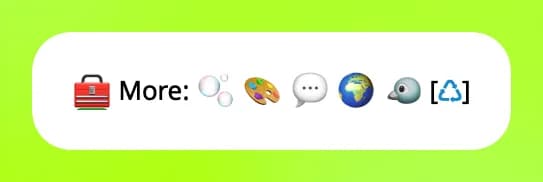
The social icons Rick uses:
- 🌍 - website.
- 💬 - Telegram.
- 🐦 - X. The ♻️ or
[♺]next to it checks whether the profile was recycled. - 🐙 - GitHub.
DexPaid
Rick refers to DEX paid when the token's DexScreener socials order has been
paid. /dp shows the paid status plus Community Take-Over (CTO), boost, and
ad orders. Rick asks DexScreener for the network of the token's own pair, so
the networks covered are the ones DexScreener's order data covers.
/dp <contract>- current status and the last five orders./dp <contract> full- the full order history. When more than five orders exist, the short reply notes that more history is available./dpin reply to any Rick message - the same for the token in that message.
The reply tells you:
- The first line always states the current DexPaid status.
- 📝 - whether DEX is paid, and so whether the socials are updated.
- ⚡ - the current boost status.
- 🫂 - whether a Community Take-Over is ordered. See find socials after a CTO.
- 📣 - whether token ads or trending ads are ordered.
A 🟢 marks an accepted order. An accepted socials order sets the token status to ✅ DexPaid.
A processing order can fail. Other tools may show processing as DEX paid to suggest a quicker outcome, but processing does not mean the order succeeded.
/dp ticker works, but it is not recommended: in some cases the wrong
contract is fetched. Use the contract address.
Tips:
- pump.fun scans always show the .
- If socials show in the 🧰 More row of the main scan, DEX is paid.
- DexPaid alerts can notify a group
as soon as a token's DexScreener socials are updated. Running
/dpon an unpaid token subscribes the chat; the alert behaviour is described there.
Contract score
The 🧠 Score is Rick's variation on contract checksums. It gives a quick read on how unique a token contract is. Supported network: Ethereum. Rick scores every contract when it is requested, so the first check of a new contract can take a little longer.
- A lower score means many copy-paste contracts exist.
- A score of 100 means the contract is unique, for now.
When a live pair is not found for an Ethereum contract, Rick scores it automatically so you immediately see similar contracts.
/pre <address>- score a contract before trading is enabled. The contract must be verified./pc <address>- list matching contracts when the score is not 100, most recently seen first, up to 15 results.
Always call these with the token address, the one shown in full on the advanced price reply.
The score is not a bearish or bullish indicator, only a way to tell whether a contract is unique. Rugged contracts were not kept historically, so the data improves over time. A score of 100 only means Rick found no similar contracts, and a very low score may just mean a basic contract. The method is not 100% accurate. Always DYOR.
AI contract analysis
/aica has Rick read a contract's verified source code and return a short
report that flags honeypots, hidden mints, anti-bot tricks, dynamic taxes,
and ownership tricks.
The report is AI generated and is not a safety guarantee. Treat it as one input, not a verdict.
/aica <contract>- analyze a contract. A token name or symbol works too./aica <contract> <chain>- read the source on a specific chain, for example/aica 0x... base.
Supported chains: Ethereum, BNB Chain, Base, Robinhood, and Stable.
Costs 10 credits, free when the audit is served from
cache. Reports are
cached for seven days, so re-running /aica on the same contract is instant
and free. The source must be verified on the explorer: unverified contracts
return Contract source code is not verified. and you are not charged. If
the audit cannot be generated, no credits are used.
Lore
/lore gives an instant read on the meme or story behind a memecoin. It
works on any token, but if the token is not a meme, Rick might turn it into
one.
/lore <token address>- the lore for a token. A name or symbol works too./lorein reply to any Rick scan - the lore for the token in that scan.
Lore does not use AI credits.
AI can be wrong, especially when it lacks context. Always do your own research. Automating this command is not allowed and results in a ban.
Lore is in beta. Report issues with /burpback.
I deployed a token and the lore is wrong. Not all lore is interpreted correctly. Rick uses any reliable source it can find, so add as much metadata and detail as you can. The best way to guide the lore after launch is the X bio, with proper socials linked.
How is this guide?